
Workspaces and members
A workspace is the box everything lives in: connected accounts, posts, media, comments, and the people who work on them. Nothing is shared between workspaces, which is what makes them useful for keeping one client’s work away from another’s.
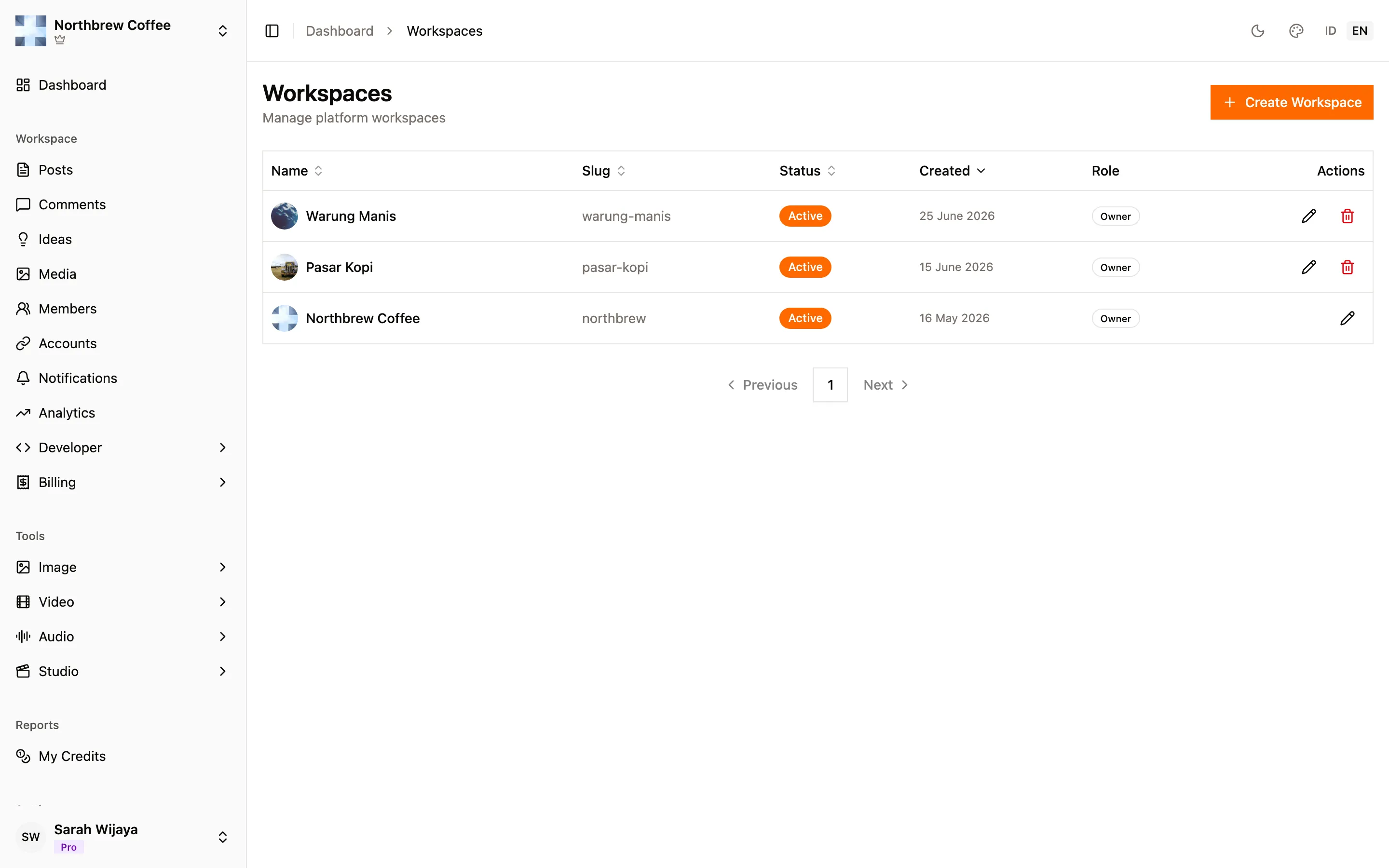
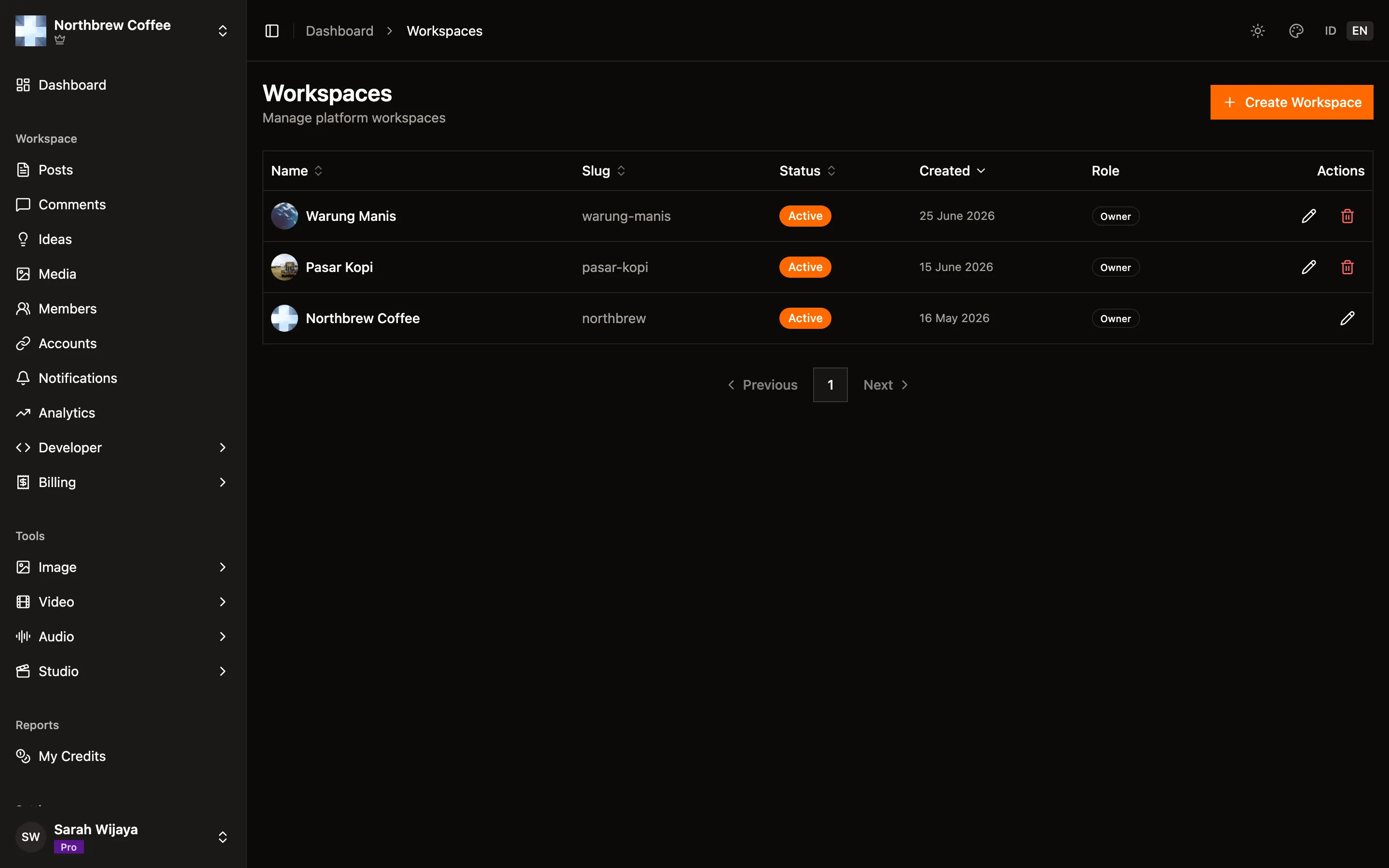
When you need another one
Section titled “When you need another one”Every workspace comes with all supported channels available, and holds one account per platform. That limit is the same on every plan, so a second account on the same platform means a second workspace. Two TikTok accounts, two workspaces. The second one is not a lesser workspace: every other channel in it is still free.
The other reason is separation. A client, a side project, or a brand that different people work on each gets its own workspace, and access is granted per workspace.
How many workspaces you can have depends on your plan.
Members
Section titled “Members”Everyone in a workspace is either its owner or a member.
The owner is whoever created the workspace. Owners can do everything, including inviting people, changing what they can reach, and deleting the workspace. There is exactly one.
Members are invited by email. Until they accept, they show up as a pending invitation you can resend or revoke. How many members you can have depends on your plan.
Permissions
Section titled “Permissions”A member sees only what you switch on for them. Eleven areas can be granted independently:
| Permission | What it opens |
|---|---|
| Posts | the composer, the schedule, and the posts list |
| Ideas | AI content ideas |
| Comments | the comment inbox and the auto-reply rules |
| Media | the media library |
| AI tools | the image, video, and audio generators |
| Analytics | reports and engagement figures |
| Accounts | connecting and disconnecting social accounts |
| Notifications | the workspace notification feed |
| Usage | AI credit usage and spend |
| API keys | creating and revoking keys |
| Webhooks | webhook endpoints and their delivery history |
You set these when you send the invitation, and you can change them afterwards from the members list. Pending invitations can be edited too, so a mistake does not mean revoking and starting again.
Owners bypass all of it. A permission switch only ever affects members.
AI credits per workspace
Section titled “AI credits per workspace”Credits belong to your account, not to a workspace, so by default every workspace you own draws from the same pool. For most people that is the right answer: one pot, spent wherever the work is.
If you would rather cap what one workspace can spend, allocate credits to it from My Credits, the account-wide page in the sidebar. An allocation moves credits out of your pool and earmarks them for that workspace. From then on that workspace spends its allocation first and cannot touch the rest of the pool, which is how you stop one client’s video generation from eating the month’s credits.
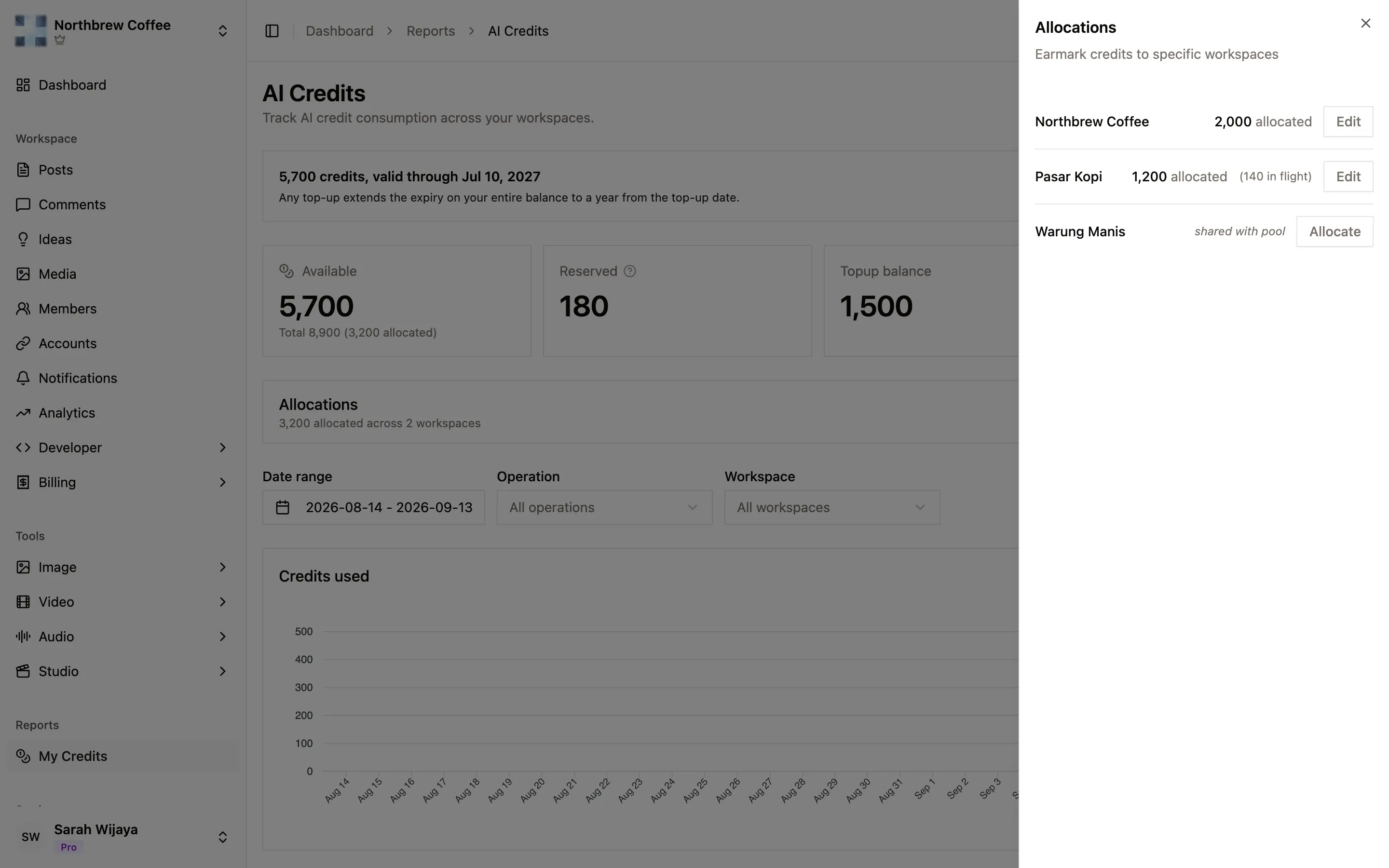
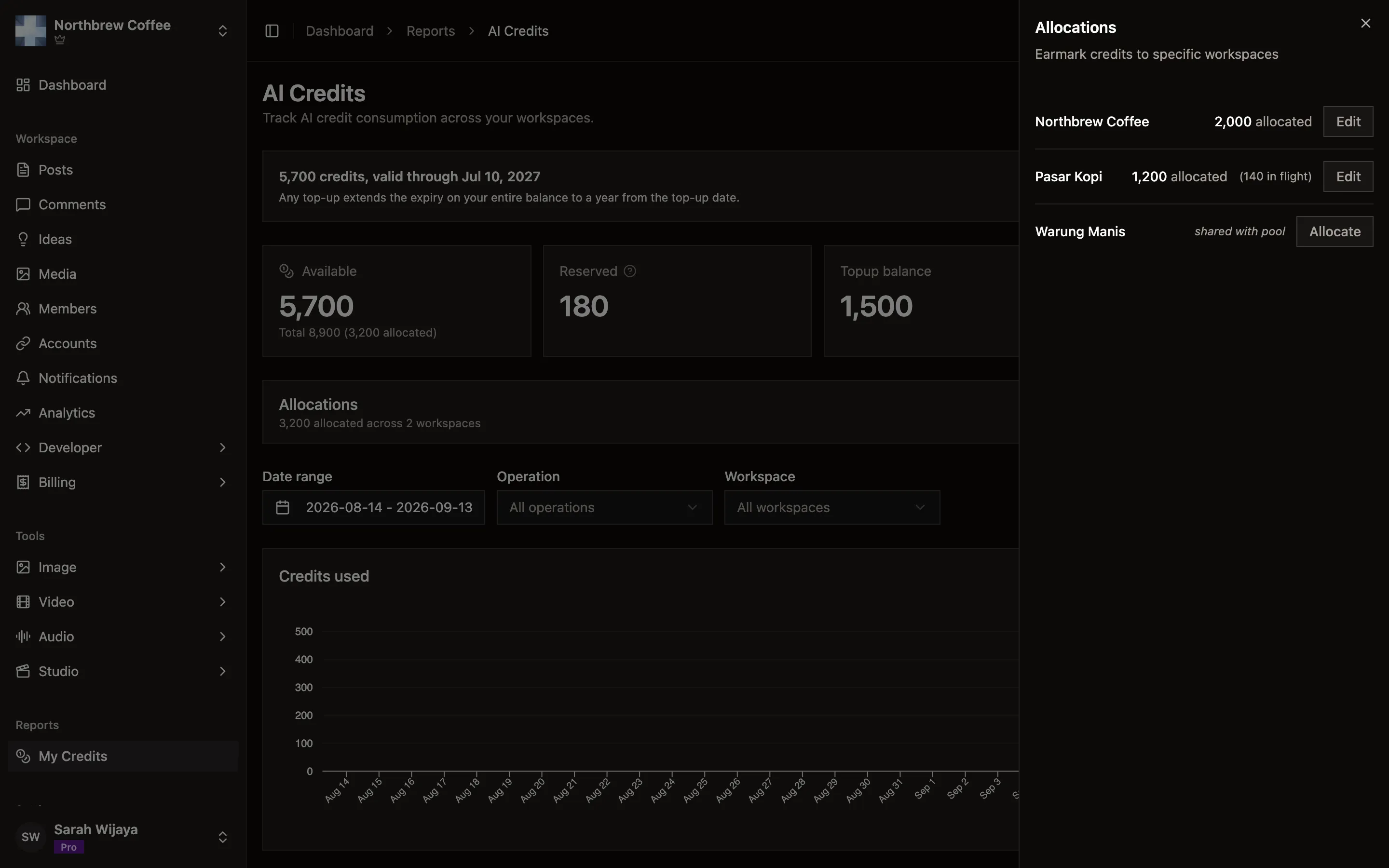
Each workspace you own gets a row. One with an allocation shows the amount, plus anything currently in flight on a job that has not finished. One without says shared with pool, meaning it just draws on the common balance.
Three things worth knowing before you start moving credits around:
- You can take them back. Returning credits to the pool is the same dialog, and an allocation that has been emptied stays visible at zero, so you can tell “deliberately nothing” from “never set up”.
- Credits in flight are not movable. A job that is still running holds credits, and clearing an allocation while that is happening is refused rather than cancelling the job. Wait for it to finish.
- You cannot allocate more than you have. The pool has to cover the amount at the moment you allocate it.
Workspaces without an allocation keep sharing the pool, so you can earmark credits for one client and leave everything else as it was. There is more on what spends credits in AI credits.
Practical setups
Section titled “Practical setups”A freelancer you trust with publishing. Posts, media, and ideas on. Leave accounts, API keys, and webhooks off so they cannot disconnect or re-point anything.
Someone who only reports. Analytics on, everything else off. They can read the numbers without being able to publish.
A co-owner in all but name. Everything on except API keys and webhooks. Those two are how an integration gets built or broken, and they are worth keeping to yourself.