
Scheduling
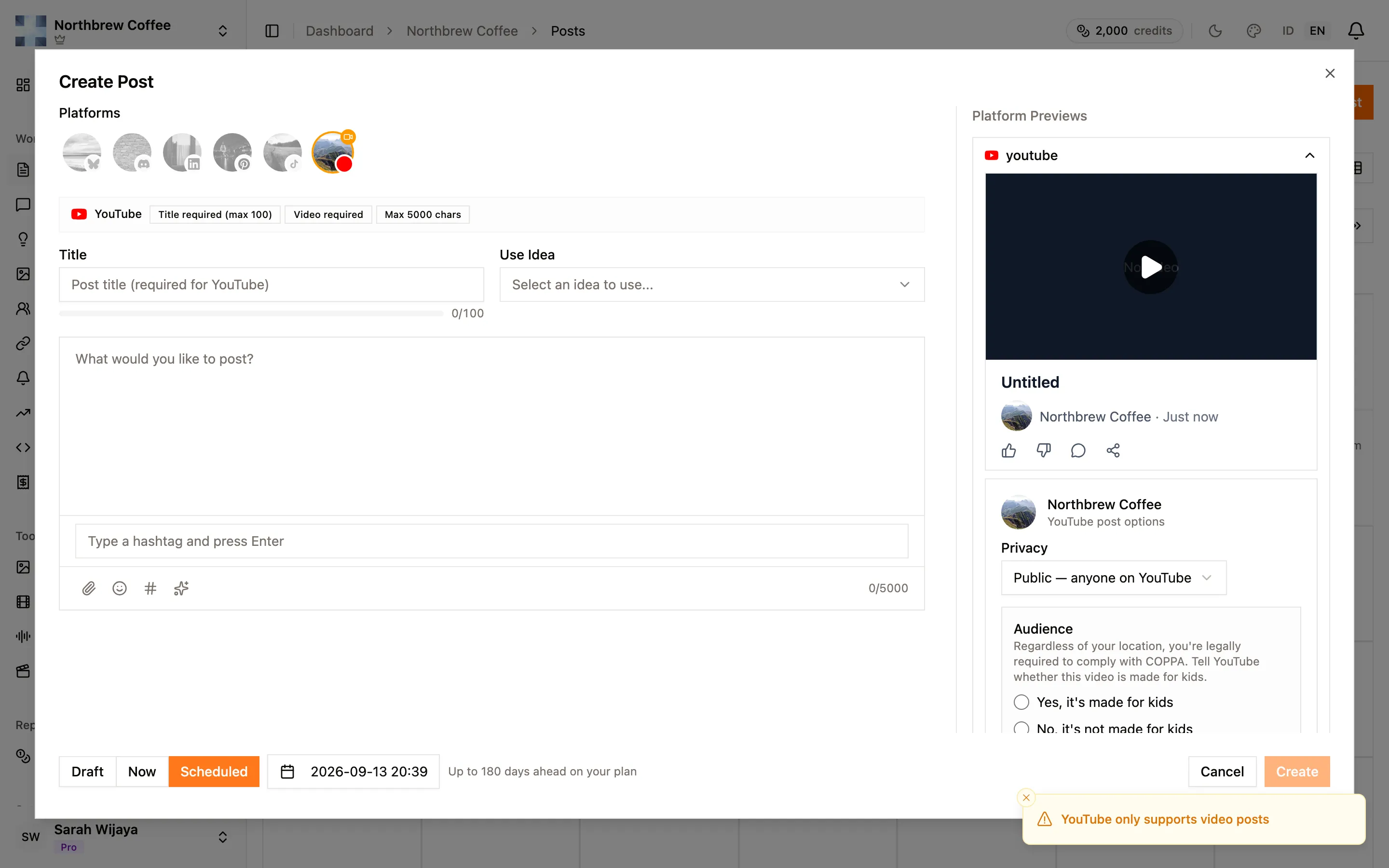
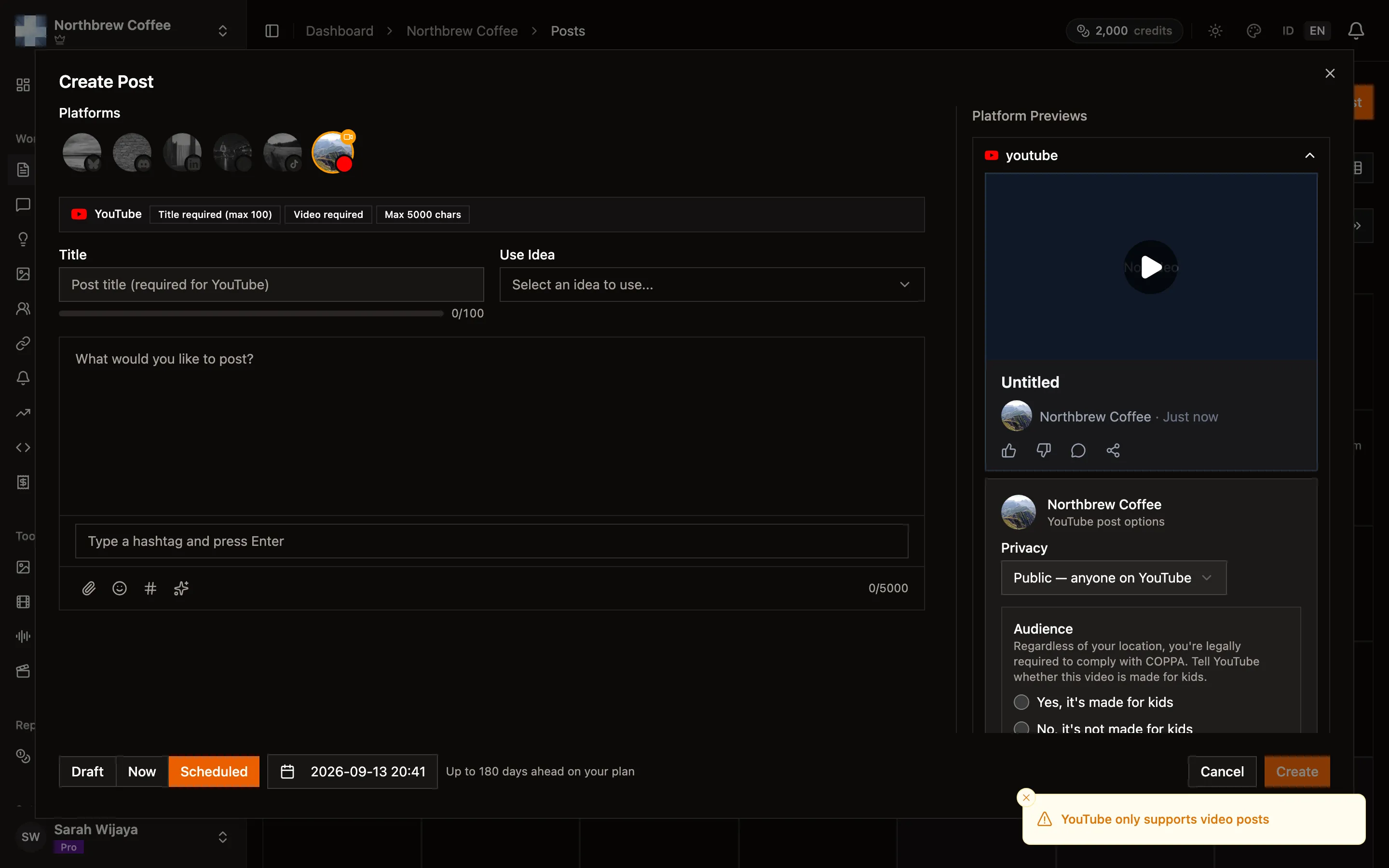
Pick Scheduled in the composer’s footer and a date and time picker appears, along with a note telling you how far ahead your plan lets you go.
Picking a time
Section titled “Picking a time”Times are your browser’s local time. There is no separate timezone setting in Publiz, so a post scheduled for 9am shows as 9am wherever you are sitting, and if you travel, the same post will show in the new local time. Worth knowing before a trip.
You can’t schedule in the past, and you can’t go further ahead than your plan allows. The picker says which, in the hint next to it.
Scheduling spends the post from your monthly allowance straight away, not when it goes out. Deleting a scheduled post before it publishes gives it back.
The calendar
Section titled “The calendar”Posts opens on a month calendar, with a coloured dot per post for its status.
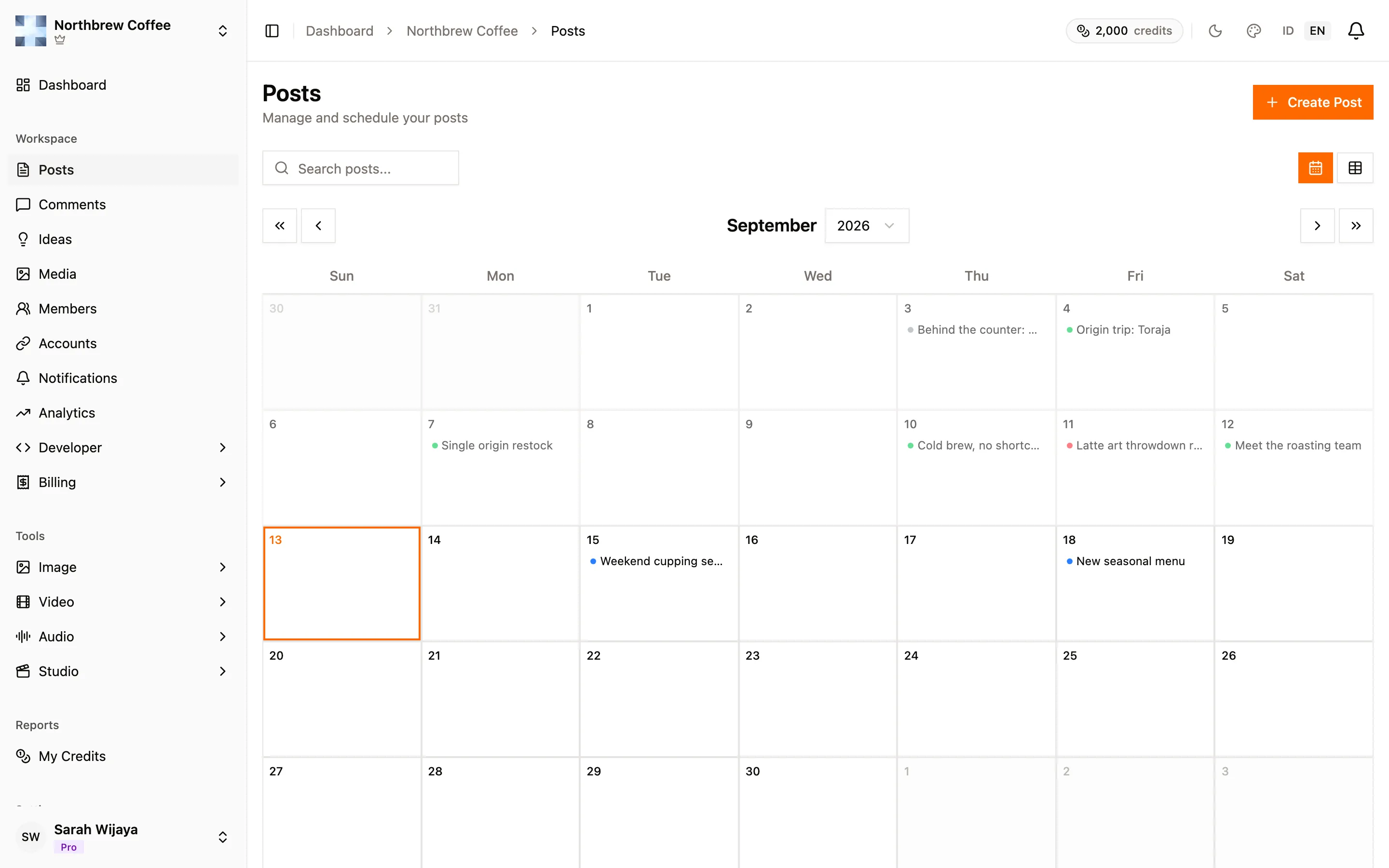
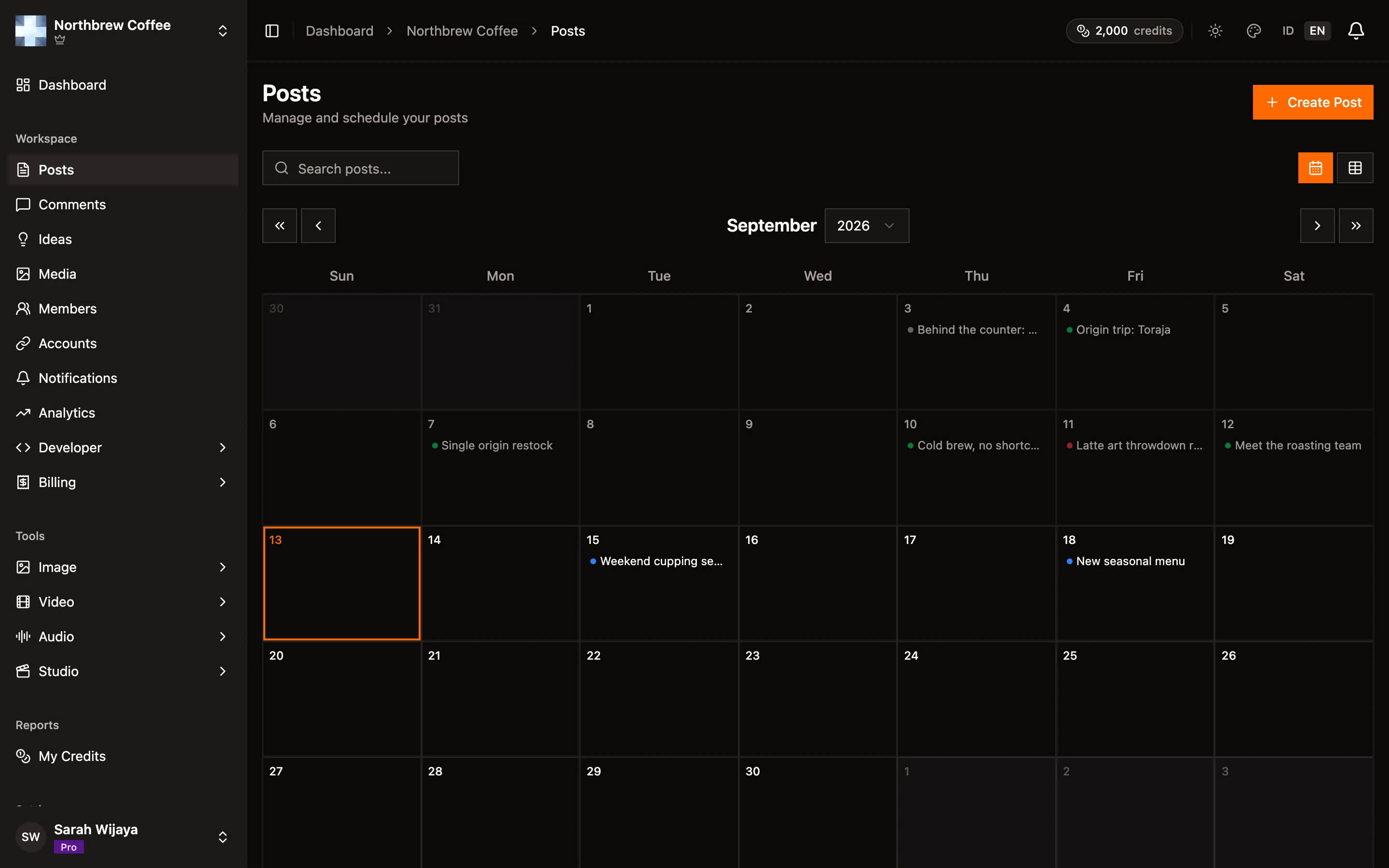
- Click a day to start a post scheduled for it. Past days and days beyond your plan’s horizon aren’t clickable.
- Click a post to open its details.
- A busy day shows +2 more, which opens the full list for that day.
- The arrows move by month, the double arrows by year.
The icon buttons top right switch to a table, which is the better view when you want to scan statuses rather than dates. The search box filters by caption, hashtag or platform name in both views.
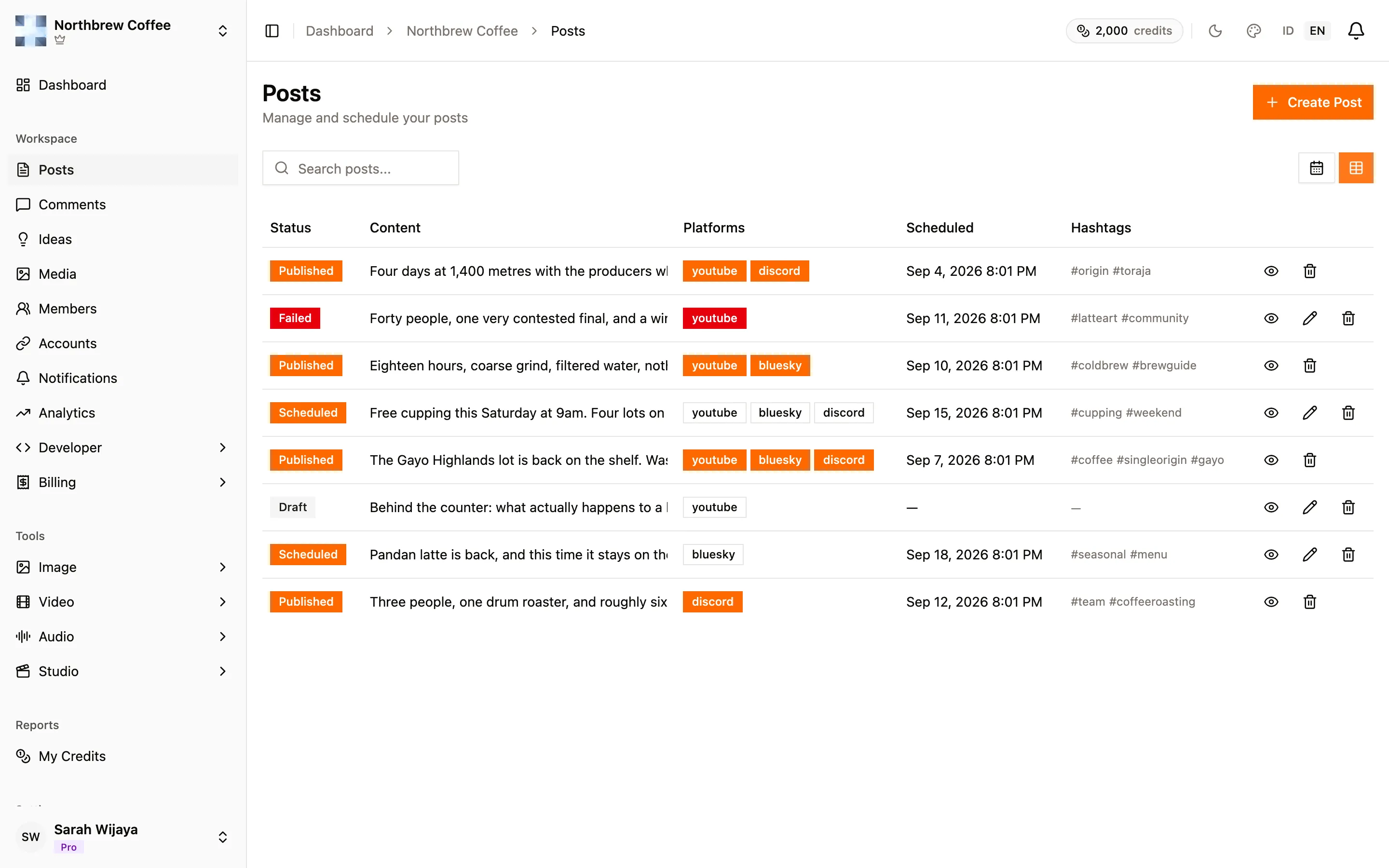
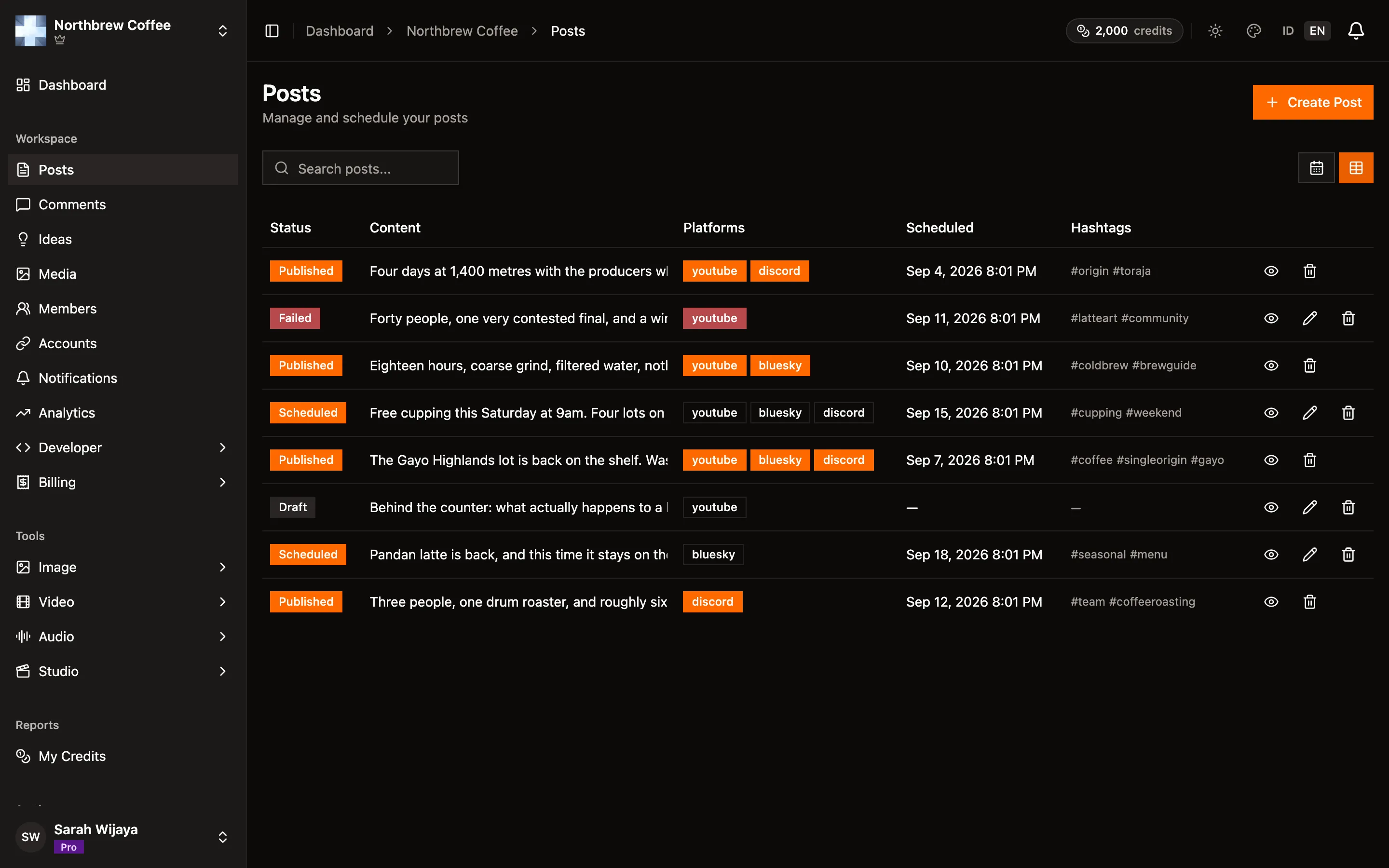
The list holds up to 100 posts, so on a busy workspace the search box is how you find older ones.
What the statuses mean
Section titled “What the statuses mean”| Status | What it means |
|---|---|
| Draft | Saved, not going anywhere |
| Scheduled | Waiting for its time |
| Publishing | Going out right now |
| Published | Every platform succeeded |
| Failed | Every platform failed |
| Partial Failed | Some platforms worked, some didn’t |
Partial Failed is the one worth understanding. Publiz publishes to each platform separately, so one channel rejecting a post doesn’t stop the others. Open the post and it lists which platforms failed and why.
When something fails
Section titled “When something fails”Most failures retry by themselves. A rate limit retries up to five times, backing off each attempt; a server error on the platform’s side retries three times. What doesn’t retry is anything the platform actually rejected, like a video that breaks its rules, because trying again would just fail the same way.
When a post gives up for good:
- You get a notification saying what happened.
- The post is credited back to your monthly allowance.
- A Retry button appears on the post.
Retry only reruns the platforms that failed, leaves the successful ones alone, and doesn’t cost anything. It’s greyed out while an automatic retry is still pending.
Failure messages are written to be readable, along the lines of “video too large, please re-encode or shorten the clip” or “account session expired, please reconnect the account”.
Deleting a published post
Section titled “Deleting a published post”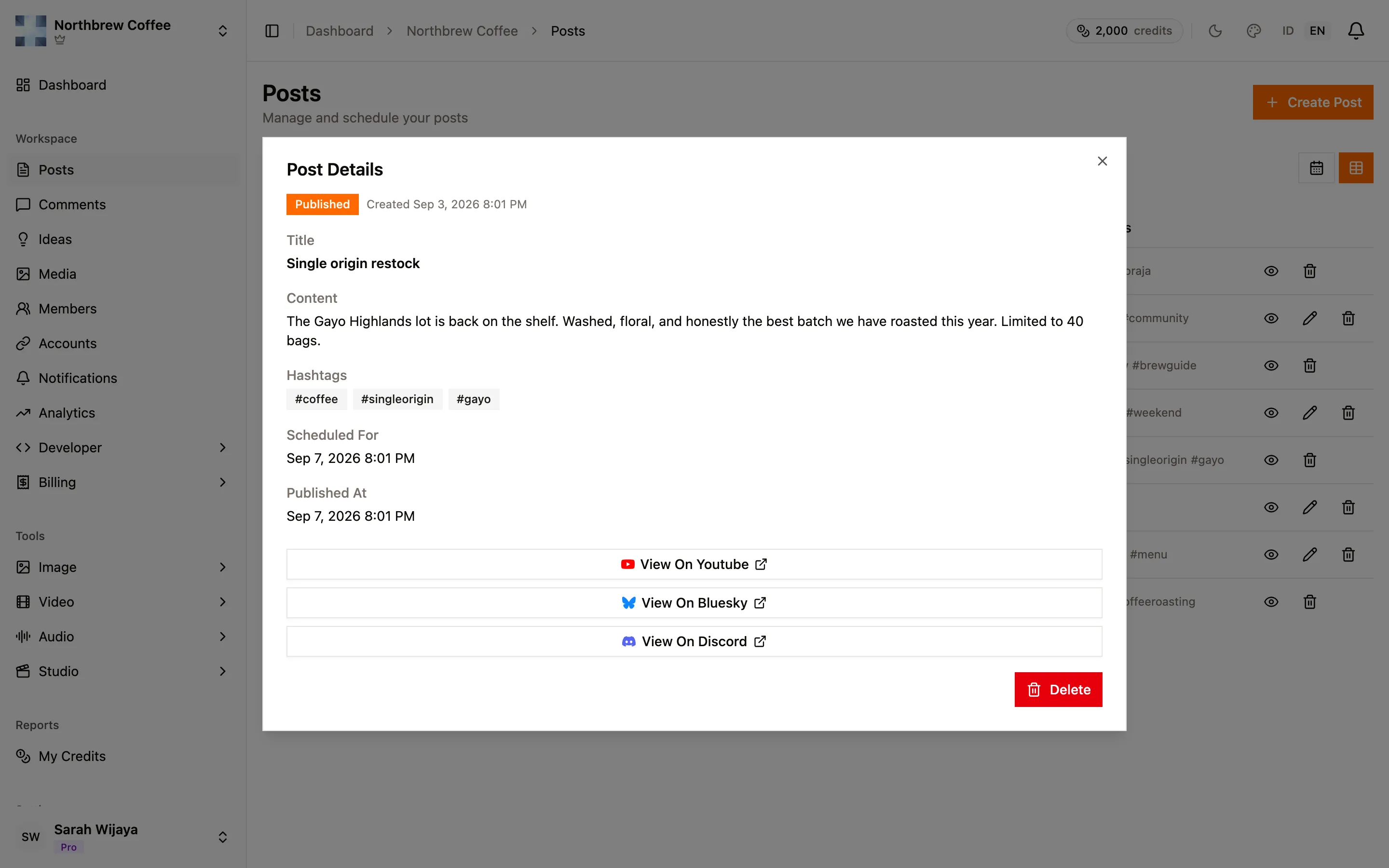
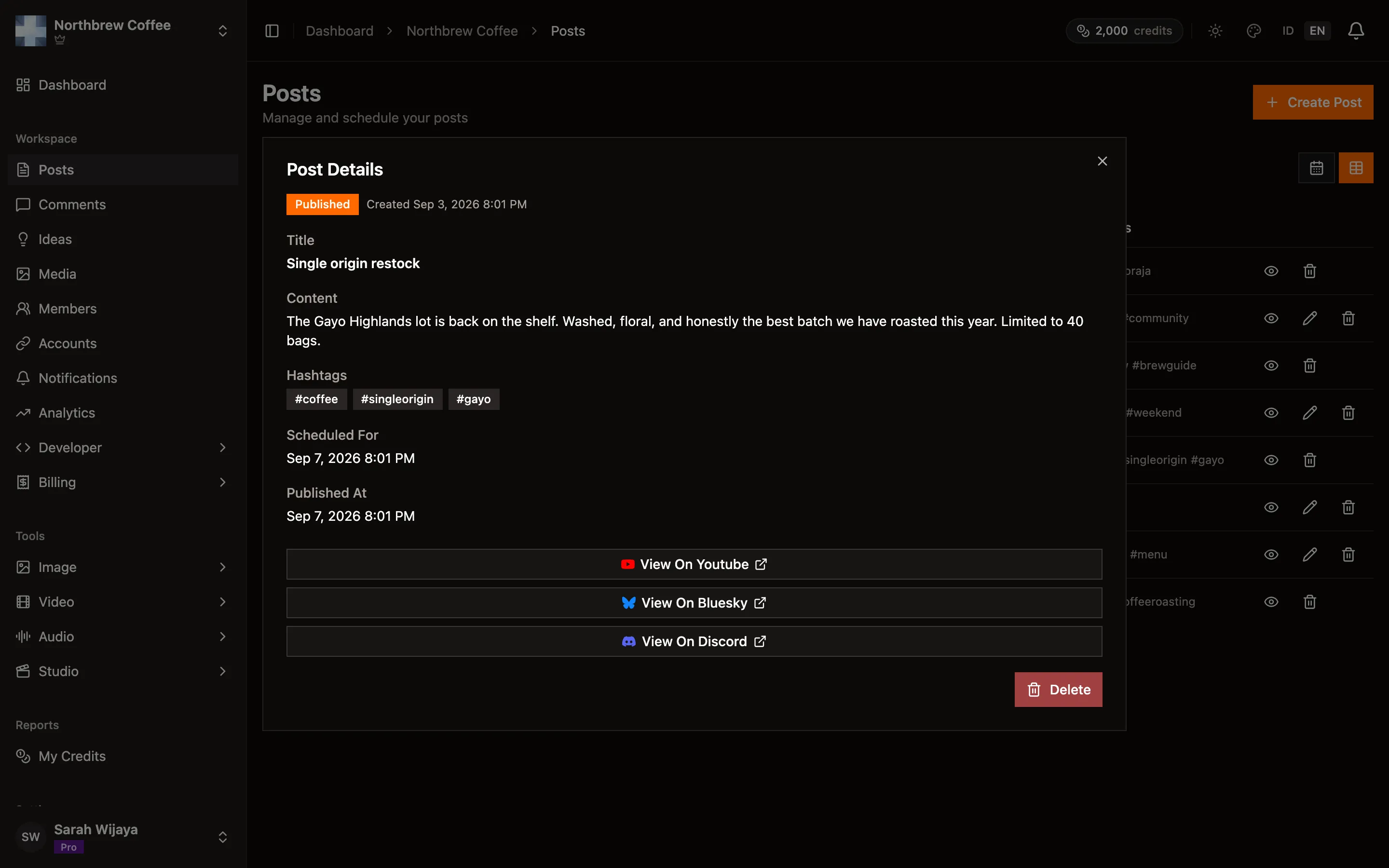
Deleting a post that already went out asks whether to also remove it from the platforms, with a checkbox each. Only platforms that support removal are pre-checked. TikTok can’t be removed this way and is disabled in that list, so it stays up until you delete it in the TikTok app.
Removal happens in the background, so the post can take a moment to disappear from each platform.