
Connect Discord
Discord works differently from the rest. A connection points at one channel in one server, chosen on Discord’s side while you connect, and it never expires. Publishing needs nothing more than that. Comments, replies and member counts need a second, optional step that adds the Publiz bot to the server.
Connect it
Section titled “Connect it”-
Open Settings then Connected Accounts and press Connect Account.
-
Pick Discord.
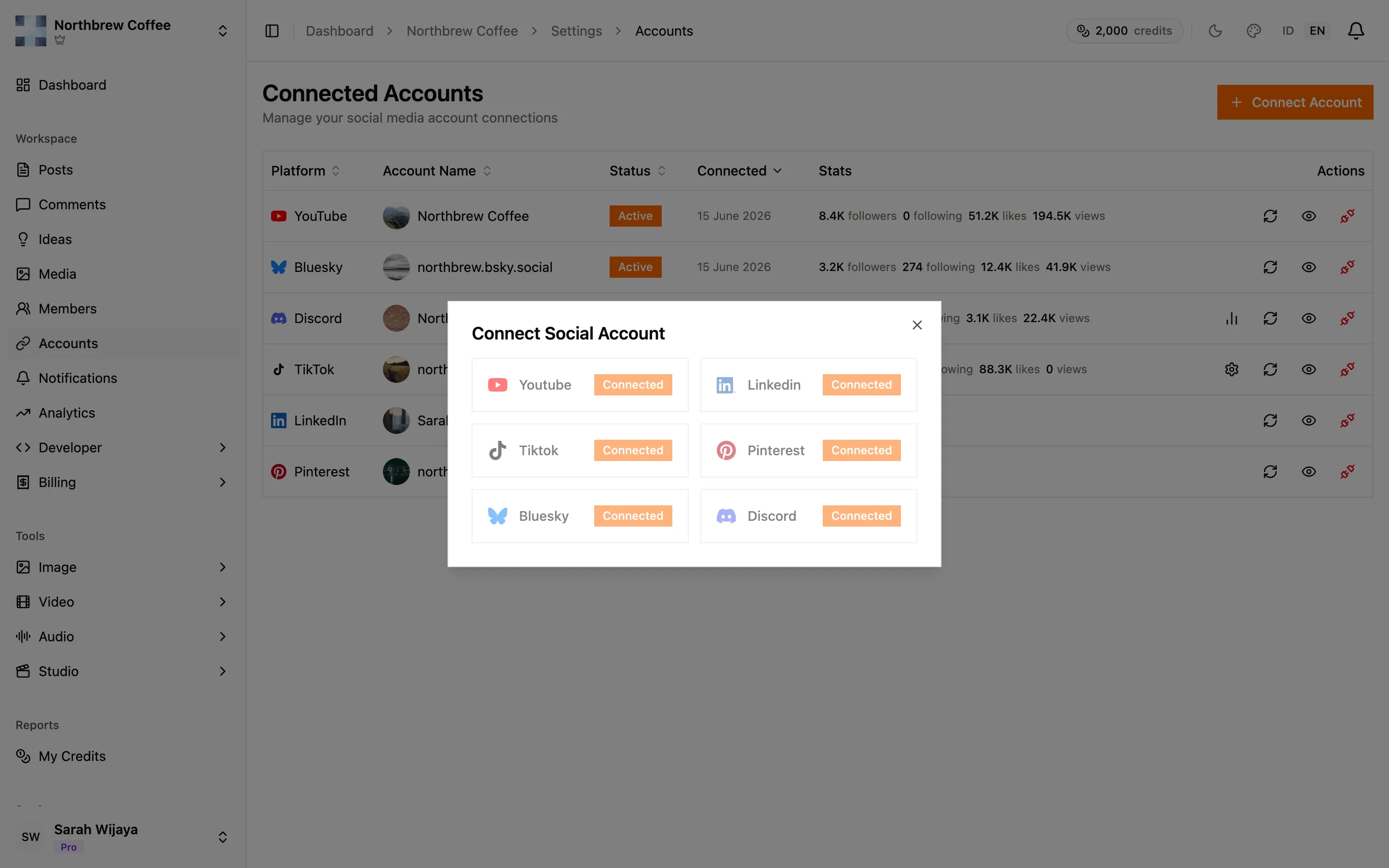
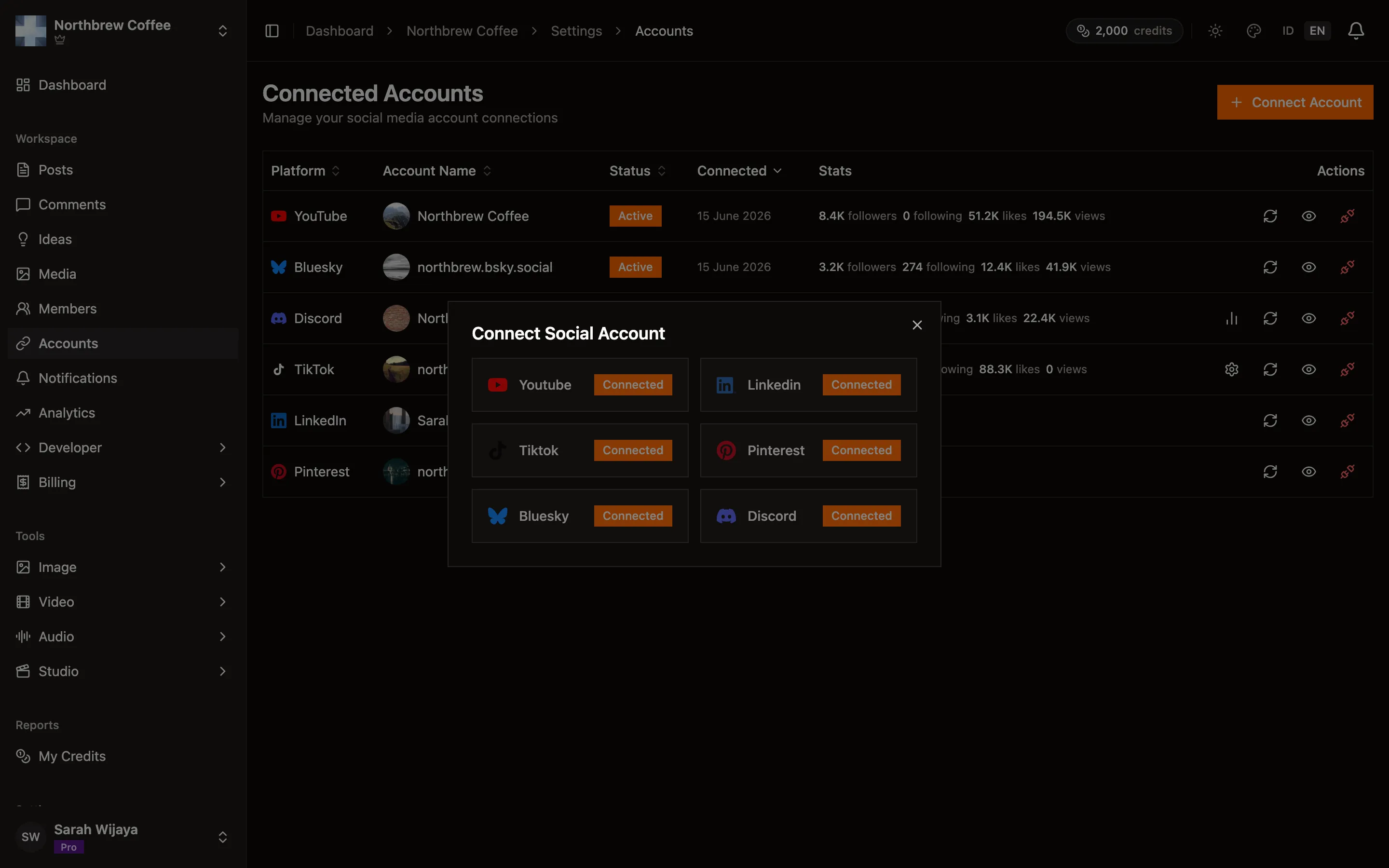
-
Discord shows its own screen asking which server and which channel to post to. Choose both there. This is the only channel where the destination is fixed at connect time rather than per post.
-
You come back and the server appears in the list, with its icon and name.
You need Manage Webhooks on that Discord server to get through step 3.
Add the bot, if you want comments and stats
Section titled “Add the bot, if you want comments and stats”Publishing works without it. The bot is what makes everything else work.
Press the chart icon on the Discord row and approve. This asks for Manage Server, which is a bigger permission than publishing needed, which is exactly why it is a separate step: someone who can only manage webhooks can still set up publishing without being blocked here.
With the bot in place you get:
- Comments on your posts, in Publiz, with reply, hide and delete
- Member counts feeding follower growth
Without it, Discord publishes fine and everything else stays empty.
What Discord allows
Section titled “What Discord allows”- Text, images and video, up to 2,000 characters.
- Up to 10 attachments per post.
- 20 MB per file. Anything bigger is posted as a link for Discord to unfurl instead of being uploaded. That works, but the preview breaks if the file is ever deleted from Publiz.
- Posts can be removed from Publiz, which deletes the message in Discord.
Comments
Section titled “Comments”Full support, with the bot: read, reply as the server, hide, and delete. Along with YouTube, this is one of only two channels where you can hide a comment instead of deleting it. See comments.
When it doesn’t work
Section titled “When it doesn’t work”Publishing fails saying there is no webhook. The webhook was deleted on Discord’s side, most often by someone tidying up channel settings. Reconnect to make a new one.
Comments are empty and the stats column is blank. The bot isn’t in the server. Press the chart icon on the account row.
You added the bot but old comments didn’t appear. Discord only lets the bot read history once it has joined. Comments from before that point stay invisible; new ones come through normally.
The Reconnect button doesn’t appear. Discord connections don’t expire, so there is usually nothing to reconnect. Use it when you want to move to a different server or channel.